WhatsApp Cloud API Tutorial
This is the technical companion to our broader guide on how to create a WhatsApp bot, written for someone who has decided to build directly against Meta's official WhatsApp Cloud API rather than use an existing bot-building platform. It walks through the actual setup, sending your first message, receiving and responding to incoming ones, and the specific details that trip up most first-time integrations.
What you need before starting
A Meta developer account, created free at developers.facebook.com. A Meta Business Account, representing your actual business. A WhatsApp Business app created inside that developer account, which gives you access to the Cloud API specifically. And, for anything beyond initial testing, a business verification process with Meta, confirming your business is real, which can take anywhere from a day to a couple of weeks and is worth starting early since it runs independently of your actual development work.
For testing, Meta provides a temporary test phone number and a limited set of pre-approved test recipient numbers, letting you build and test your entire integration before ever connecting a real business phone number, which is the sensible place to start regardless of how eager you are to see it work on a real number.
Sending your first message: the basic request shape
Sending a message is a single POST request to Meta's Graph API, structured like this in concept: an address built from your phone number ID, something like https://graph.facebook.com/v19.0/YOUR_PHONE_NUMBER_ID/messages, carrying your access token in the Authorization header, and a JSON body specifying the recipient's number and the message content. A simple text message body looks roughly like specifying messaging_product as "whatsapp", the recipient's number, and a text object containing your message. Send this with your test credentials to one of your pre-approved test numbers, and if everything is configured correctly, that message arrives on the actual WhatsApp app within seconds.
This single successful test is worth treating as a genuine milestone before building anything more elaborate, because it confirms your credentials, your phone number ID, and your basic request structure are all correct, isolating that from any more complex logic you build on top afterward.
The 24-hour rule: the detail that catches everyone by surprise
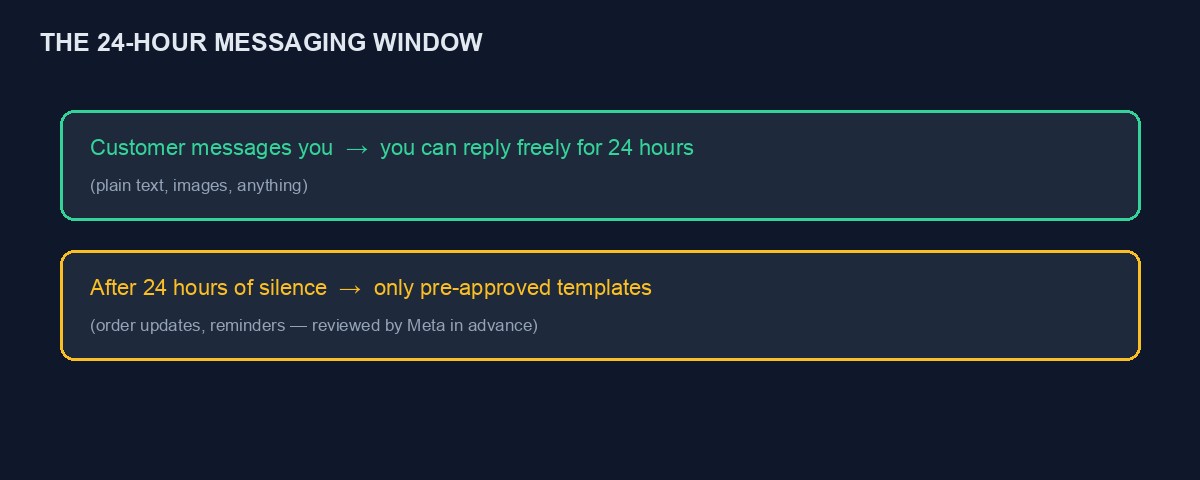
This is, without exception, the single most important rule to understand before building anything real, and it is easy to miss entirely if you only read a quickstart guide. WhatsApp restricts businesses from freely sending whatever message they want to a customer at any time, specifically to prevent exactly the kind of spam behaviour that would make the platform unusable. The rule: once a customer messages your business, you have a 24-hour window in which you can send them ordinary, free-form text messages in reply. Outside that window, you can only send a message using a pre-approved message template, a fixed format Meta has reviewed and approved in advance, typically used for things like order confirmations, appointment reminders, or delivery updates.
This has a direct, practical implication for how you must design your bot: any conversation initiated by your business, rather than by the customer, a proactive delivery update sent two days after their last message, for instance, must use an approved template, and templates take time to get approved by Meta and cannot be freely edited afterward without going through approval again. Design your message flows with this constraint in mind from day one, rather than discovering it once you attempt to send a routine notification and it silently fails.
Message templates: what they are and how to get one approved
A template is a pre-written message format with optional placeholders for specific details, submitted to Meta for review before you can use it. A delivery update template might read something like "Hi {{1}}, your order {{2}} has been dispatched and should arrive by {{3}}," where the placeholders get filled in with the actual customer name, order number, and date at the moment you send it. Submit templates through the WhatsApp Manager interface in Meta Business Suite, and review typically takes anywhere from a few minutes to a day or two, though a template can be rejected if it looks promotional in a category meant for transactional updates, or if the wording is judged too vague about its actual purpose.
Build a small library of the specific templates your business genuinely needs, order confirmation, delivery update, appointment reminder, rather than one overly generic template you try to stretch to cover every situation, since Meta's review process specifically checks that a template's stated category matches its actual content.
Receiving messages: setting up your webhook
To receive incoming messages, rather than only sending them, you need a webhook endpoint on your own server, following the same general pattern covered in our guide to what a webhook is. Meta requires two things from this endpoint specifically: it must respond to an initial verification request, a GET request carrying a challenge value you configured yourself when registering the webhook, which your endpoint must echo back exactly to prove you control it, and afterward it receives POST requests for every actual incoming message or status update, which your code parses to find the sender's number and the message content.
A genuinely common first-time mistake is forgetting the verification step entirely, building only the code to handle incoming messages and never handling that initial GET request correctly, which means Meta's dashboard will simply refuse to save your webhook configuration and give a fairly unhelpful error, until you realise the verification handshake itself needs its own explicit code.
A realistic conversation flow, end to end
Picture a customer sending "hi" to your business number. Your webhook receives this as an incoming message event, and your code reads the sender's number and the message text. Since this message arrived within a fresh 24-hour window, you can reply freely: perhaps a greeting and a short menu, "Reply 1 for our opening hours, 2 to check an order, 3 to speak to a person." The customer replies "2," and your code, having stored enough context to know they are mid-conversation rather than starting fresh, asks for their order number. They reply with it, your code looks it up against your actual order records, and replies with the current status, still comfortably within the same 24-hour window. If a full day later you want to proactively tell them their order has now shipped, that message must go out using an approved template, not a free-form reply, since the customer has not sent anything new in the interim to reopen the free-messaging window.
Tracking conversation state: why you need it, and how simply you can start
Notice in the example above that your code needed to remember the customer was "mid-conversation, waiting for an order number" between their two separate messages. This is conversation state, and even a very simple implementation, storing the current step of a conversation against a customer's phone number in a database table, is enough for most straightforward bots. Resist the urge to build something more elaborate than your actual conversation flows need; a small table tracking "which step is this phone number currently on" handles a surprising amount of real, useful complexity before you ever need anything more sophisticated.
Media messages: images, documents and buttons
Beyond plain text, the Cloud API supports sending images, documents, and interactive elements like buttons and list menus, which genuinely improve the experience for structured choices compared with asking a customer to type a number. An interactive button message might present "Check Order Status" and "Speak to Support" as actual tappable buttons rather than requiring the customer to type a specific word correctly, reducing the number of confused or malformed replies your code has to handle. Building interactive elements takes more upfront work than plain text but tends to pay for itself quickly in fewer misunderstood customer replies.
Rate limits and message throughput
New WhatsApp Business accounts start with a limited daily messaging tier, which increases automatically as your account maintains good quality ratings and sends a genuine volume of messages that customers respond well to. Sending too aggressively, or receiving a meaningful number of customer complaints or blocks, can restrict this tier rather than grow it, which is a further reason the anti-spam pacing habits covered in our broader WhatsApp bot guide matter in practice, not just in principle.
Security: verifying your webhook is genuinely from Meta
As covered in our general webhook guide, never trust an incoming request without verifying it. Meta signs each webhook payload, and your code should verify this signature using your app secret before acting on anything the payload claims, exactly the same discipline that applies to a payment gateway's webhook, applied here to incoming messages instead. Skipping this check means anyone who discovers your webhook's address could send fake "customer messages" your bot would treat as genuine.
A worked example: debugging a webhook that verifies but never receives messages
A common early frustration: your webhook verification succeeds, Meta's dashboard shows it as connected, but no incoming customer messages ever actually arrive at your endpoint. Working through this systematically rather than guessing: first, check the webhook subscription fields in Meta's dashboard specifically, since verifying a webhook's URL and subscribing it to actually receive "messages" events are two separate steps, and it is entirely possible to complete the first without the second, leaving your endpoint correctly verified but genuinely subscribed to nothing.
If the subscription looks correct, check whether your test message was actually sent to the correct number, the specific test number tied to your app, rather than a different number you may have used during earlier experimentation, since messages sent to the wrong number simply never reach your webhook at all, with no error to alert you. Only once both of these are confirmed correct is it worth suspecting your own endpoint code, and at that point, temporarily logging the raw, complete body of every incoming request, before any parsing logic runs, usually reveals immediately whether the problem is your endpoint never being reached at all, or being reached but misreading the payload's structure.
Error handling: what Meta's API tells you when something goes wrong
A failed send request returns a JSON error object with a specific error code and message, and learning to read these rather than treating every failure identically saves real debugging time. A common one early on is an error indicating the recipient is outside your approved test list, relevant only during testing before your number is fully verified. Another common one indicates you are attempting a free-form message outside the 24-hour window, which will specifically mention needing to use an approved template instead, directly pointing you at the actual rule you have run into. Reading the specific error message, rather than assuming a generic "something is broken," resolves the large majority of early integration problems considerably faster.
Opt-outs and respecting "stop"
Build explicit handling for a customer who wants to stop receiving messages, recognising common phrases like "stop" or "unsubscribe" and confirming you have honoured the request, then genuinely respecting it in your own systems going forward. Beyond simply being the right thing to do for your customers, WhatsApp actively tracks how frequently users block or report a business number, and ignoring clear opt-out signals is one of the more reliable ways to damage your account's quality rating and, with it, your messaging limits.
Logging and monitoring once you are live
Keep a genuine record of message delivery statuses, WhatsApp sends status updates through the same webhook indicating whether a message was delivered, read, or failed, not just the initial send confirmation, and these are worth storing and reviewing rather than discarding. A rising rate of failed deliveries to a particular pattern of numbers, or a sudden, unexplained drop in your account's messaging tier, are both things you want to notice from your own monitoring, ideally before a customer complains that your bot has stopped replying to them.
A closing note on treating this as infrastructure, not a novelty
A WhatsApp bot built on the Cloud API is, underneath the conversational surface, genuine infrastructure your business will depend on, and it deserves the same operational seriousness as any other piece of infrastructure: monitoring, a plan for what happens when it fails, and someone responsible for noticing and responding when it does. Treating it as a one-time build rather than an ongoing responsibility is the most common way a genuinely well-built bot degrades quietly over months, working technically while slowly drifting out of date with the business it was built to represent.
Build this into someone's actual, named responsibility from the start, rather than an implicit assumption that "someone will notice" if the bot stops responding correctly. A bot that has silently stopped working for three days before anyone realises is a considerably worse outcome, in lost customer trust, than the same underlying technical problem caught and fixed within the hour by someone actually watching for it.
Moving from test number to a real business number
Once your integration is working reliably against the test number, adding your real business phone number involves registering it in Meta Business Suite and completing the display name review, where Meta checks that the name you want to show customers accurately represents your actual business. Existing WhatsApp Business App users migrating an already-active number to the Cloud API should expect a short period where the number cannot be used in the regular consumer app simultaneously, worth planning around rather than discovering mid-migration.
Cost: what Meta actually charges
Meta's pricing has shifted toward a conversation-based model where the first exchange with a customer in a given period is often free, with charges applying beyond a monthly allowance and varying by country and by whether the business or the customer started the conversation, service conversations initiated by a customer's own message are typically treated more favourably than marketing messages a business sends proactively. Rates and exact allowances change periodically, so check Meta's own current business pricing page directly before budgeting, rather than relying on a specific figure that may already be outdated by the time you read this.
For a small business sending a modest, genuine volume of customer service replies, the actual messaging cost tends to be a minor line item compared with the value of the time saved, since so much of ordinary customer service traffic is free-form replies within the 24-hour window rather than proactive, chargeable outbound messages.
A shortcut worth considering honestly
Everything above is genuinely buildable by a competent developer in a focused week or two, and plenty of businesses do exactly that. If what you actually need is a working bot rather than the experience of having built one yourself, the broader landscape of existing platforms covered in our guide to creating a WhatsApp bot handles all of the above, templates, webhooks, conversation state, signature verification, already built and tested, which is worth weighing honestly against the time this tutorial represents before committing to building it from scratch yourself.
If you are running a VTU project on our own platform, a working WhatsApp purchase bot on the official Cloud API is already built in on eligible plan tiers, covered in more detail in that same guide, and our developer documentation covers the rest of the API surface available to your own project if you are building something custom alongside it.



Comments
No comments yet. Be the first to share your thoughts.